Shopify CSV import errors: the ones that fail loudly, and the one that doesn't
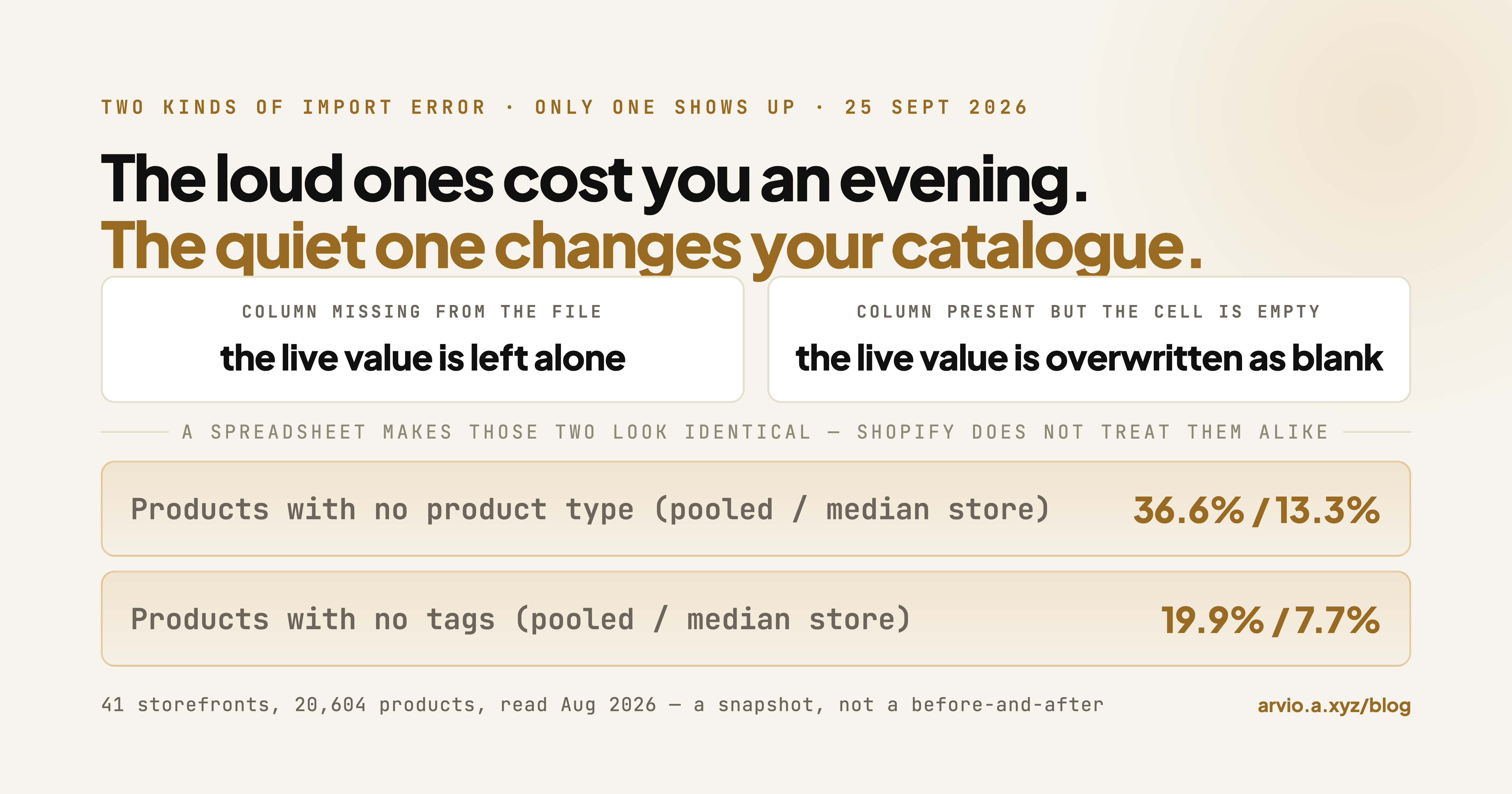
There are two kinds of Shopify CSV import error, and confusing them is what costs people an evening.
The first kind stops the upload. Shopify refuses the file, or refuses a row, and puts something on screen. Those are annoying, but they are honest: nothing changed, you have a message to search for, and the fix is mechanical.
The second kind finishes. The banner says the import is done, the product count goes up or stays the same, and your catalogue is now different in a way nobody told you about. This is the kind with no error message to search for — by the time you notice, the thing you're hunting is the difference between what the products used to say and what they say now.
Key takeaways
- The destructive rule is about blank cells, not missing columns. Shopify's documentation states that "if a non-required column in the import CSV file is blank, then the matching value in the product list is overwritten as blank" (read 2026-09-25). A column you leave out of the file is a different case entirely: "if a non-required column isn't included in the import CSV file, but is included in the existing product list, then the value in the product list remains the same." Present-and-empty wipes. Absent leaves alone. There is a third documented case that is easy to miss: a column that "relies on other column data not included in the file" causes existing data to be "deleted or removed" — Shopify's example is keeping SKU while dropping the Option1 columns, which deletes the variant option. Almost every silent import disaster is one of these three, and a spreadsheet makes them look identical.
- The overwrite checkbox works the opposite way from how it's usually described. When the overwrite option is not selected, Shopify's documentation says "the products that match an existing handle are ignored during CSV import" (read 2026-09-25). You do not get a second copy of the product. You get an import that reports success and changes nothing — which is its own kind of error, because you then go looking for a bug in your spreadsheet that isn't there.
- The fields a wipe would hit hardest are the ones nobody looks at afterwards — and they are already commonly empty. Across 41 live Shopify storefronts we read publicly, product type was blank on 36.6% of products pooled, with a per-store median of 13.3%; tags were blank on 19.9% pooled, median 7.7%. That gap between pooled and per-store is the point: this is not every store's problem evenly, it's a few catalogues carrying most of it. Nobody opens a product page to check whether its product type is still there.
- The prevention is a pre-upload pass, not a post-import cleanup. Export the products you intend to change, delete every column you are not deliberately editing, and check that no cell you meant to leave alone came out of the spreadsheet empty. That takes about five minutes and removes the entire silent category.
- An old template is probably not your problem. The header row of an export we have on file reads
Handle,Title,Body (HTML),Vendor,.... Column naming has changed presentation over the years, but a saved spreadsheet with the older column names is not in itself the reason a column failed to apply.
Catalogue figures: 41 live Shopify storefronts, 20,604 products, read 2026-08-26 from the public products.json endpoint, computed 2026-09-21. The stores came at random from a public list of owners who posted their own URL on the Shopify Community's Store Feedback board asking for critique, so read every share here as a reason to check your own store rather than as a figure for Shopify at large. Method at the end.
The import said it succeeded. That is not the same as it being right
Arvio reads what actually landed in your catalogue after an import, tells you which fields came in empty or wrong, and drafts each fix against your real product data. Nothing applies until you approve it.
The loud errors, and why they're the easy half
An import that refuses to run is telling you something true about the file. The categories are narrow, and you can usually tell which one you're in from where it stopped.
The file is rejected before anything is read. Size is a documented hard stop: Shopify states that "your product CSV can't exceed 15 MB. If you get an error after trying to upload a new CSV file, or if the upload times out, split the CSV file it into multiple smaller files, and then upload each file" (read 2026-09-25). If you exported a large catalogue and edited 200 products in it, splitting is not a workaround — it's the documented answer, and it happens to also reduce the blast radius of everything in the next section.
A row is rejected but the rest go through. This is the case where a partial import leaves you in an ambiguous state: some products updated, some didn't, and the count on the confirmation doesn't tell you which. Re-running the same file after a fix is safe in the sense that matching is by handle, but it is not safe in the sense of the blank-column rule below — if your file has a column that's blank on rows that already imported fine, the second run wipes those values too.
Encoding and quoting. A file that opens correctly in your spreadsheet can still be malformed as CSV, usually because a description contains a quotation mark or a comma and the escaping didn't survive a round trip through a spreadsheet application. The fix is to save as CSV UTF-8 explicitly rather than whatever the default export gave you.
We haven't reproduced Shopify's exact error strings against our own store, and we're not going to print strings we haven't confirmed — if you have a message on screen, search that message verbatim, because the wording is the most specific thing you have.
The useful property of all of these: nothing has silently changed. You still have the catalogue you started the day with.
The quiet error: present but empty
Here is the rule, in Shopify's own words.
Blank cell in a column that is present in the file:
"If a non-required column in the import CSV file is blank, then the matching value in the product list is overwritten as blank."
Column not present in the file at all:
"If a non-required column isn't included in the import CSV file, but is included in the existing product list, then the value in the product list remains the same."
(Both read on the Shopify help documentation for importing products, 2026-09-25.)
The difference between them is the entire failure mode. Shopify's own illustration is a vendor: if the product currently has a vendor and the Vendor column in your file is empty for that row, the vendor is cleared.
Now think about how a file actually reaches the import screen. You export 300 products. You open the file in a spreadsheet. You fix the descriptions, which is what you came to do. Somewhere in that session — a filter that hid rows, a sort that misaligned a block, a paste that landed one column to the left, a "clean up this column" that emptied it instead of the column next to it — a handful of cells that had values now don't. Every one of those cells is a live value you are about to clear, and the import will do it without complaint, because from Shopify's side an empty cell is an instruction.
The asymmetry is what makes this hard to catch by eye. A wrong value looks wrong. If a product ends up with the vendor of the product below it, you notice the first time you open a product page. An empty value looks like nothing at all — and on the Products list view, which shows you a title, an image and a status, an emptied vendor or product type or tag set is completely invisible. You'd have to open the product to see the absence.
Which columns this actually hits
The columns at risk are the ones that get emptied without anyone noticing, which means the boring organisational fields rather than the ones customers see. A blank title fails loudly. A blank product type doesn't fail at all.
We read the public catalogues of 41 live Shopify storefronts — 20,604 products — and counted how often those organisational fields are empty in the wild:
| Field | Share of all products read | Per-store median | Stores with at least one |
|---|---|---|---|
| Product type blank | 36.6% | 13.3% | 35 of 41 |
| Tags blank | 19.9% | 7.7% | 35 of 41 |
A few large catalogues carry most of it. The pooled share and the per-store median differ by roughly 2.5x on both rows, and the gap means something specific: this isn't a condition spread evenly across every catalogue. A few stores with a lot of products carry most of the pooled number, while the typical store sits much lower. If you took the 36.6% alone you'd conclude everyone has this problem; the 13.3% says the median store mostly doesn't, and the stores that do, have it badly.
These figures are a snapshot of what catalogues look like now, not a before-and-after of any particular import — we can say these fields are commonly empty, and that they're exactly the fields a CSV round trip can empty, but this measurement does not attribute a given store's blanks to a given import. And some of those blanks were never filled in the first place rather than wiped. Both fields have their own reasons for being empty, and we've written separately about product type and tags as standalone problems. The reason they belong in this article is narrower: they are the fields where a wipe produces no symptom, which is what makes them the right place to look after an import you're unsure about.
The overwrite checkbox, and the error that is "nothing happened"
The import screen offers an option to overwrite products with matching handles. Handle matching is how Shopify decides whether a row in your file is a new product or an edit to an existing one, so the checkbox is load-bearing — but not in the direction most people assume.
Shopify's documentation says that "if the overwrite option isn't selected, then the products that match an existing handle are ignored during CSV import" (read 2026-09-25).
Ignored. Not duplicated. If you are re-importing 300 products to fix their descriptions and you leave that box unticked, the import will report success and your descriptions will be exactly as they were. There is no error, no duplicate, no diagnostic — which is why people then spend an hour checking their spreadsheet for a formatting problem that doesn't exist.
So the checkbox creates a fork with a bad outcome on each side if you get it wrong:
- Unticked when you meant to edit: nothing happens, and it looks like a file problem.
- Ticked when your file has stray blank cells: everything happens, including the blank-column rule above, across every row and every column in the file.
That's the case for making the file small. The overwrite option is exactly as dangerous as the number of columns and rows you hand it.
You have now seen which columns do the damage
Checking every product a spreadsheet touched is the part that does not scale. Arvio takes the rule once, reads the live catalogue, and holds every proposed change until you say yes.
The five-minute pass that prevents the quiet errors
None of this needs an app. It needs the file to be smaller than it currently is.
Export only the products you're changing, not the catalogue. If you are editing 300 products, a full-catalogue export puts every other product in the store inside the blast radius of the overwrite option for no benefit. Filter the Products list first, then export the selection.
Delete every column you are not deliberately editing — but not blindly. Leaving a column out is normally safe: Shopify's documentation says "if a non-required column isn't included in the import CSV file, but is included in the existing product list, then the value in the product list remains the same" (read 2026-09-25). Keep the handle column so matching works, keep the columns you're actually editing, delete the rest.
The exception that makes this dangerous, and it is documented. Some columns depend on others. Shopify states: "If a non-required column is included in the import CSV file that relies on other column data not included in the file, then existing data is deleted or removed" (read 2026-09-25). Their own example is the one that catches people: "if the SKU column is included in the import CSV file, but not the Option1 value and Option1 name columns, then the product variant option is deleted." So cutting the file down is the right instinct, and it can still destroy variants if you keep a dependent column and drop what it depends on. If your products have variants, keep the Option columns together with anything variant-level (SKU, barcode, variant price) or leave that whole group out.
Then check the columns you kept for unintended blanks. In the spreadsheet, filter each remaining column for empty cells. Every empty cell you find is a decision: either you meant to clear that value, or the cell lost its content somewhere in your editing session. The import cannot tell the difference between them.
Sanity-check the row count and the alignment before you save. Compare the number of data rows against the number you exported. If they differ, a filter was active or rows were dropped, and a dropped row is the one case where the import genuinely leaves the product alone — which is fine, but you should know it happened rather than discover it later.
Import the first ten rows as a test. Save a copy of the file containing the header and ten products, import that with the overwrite option set the way you intend, and open two or three of those products afterwards. If the blank-column rule is going to bite, it bites on ten products instead of three hundred, and you still have the other 290 in their original state.
That last step is the one people skip and the one that pays. Ten rows costs you two minutes.
Column names: a real change, and a non-problem
Column names get blamed for failed imports more than they deserve.
The header row of an export we have on file reads Handle,Title,Body (HTML),Vendor,Standardized Product Type,Custom Product Type,Tags,Published,... — the older naming, and a file with that header still imports. If you've been reusing a saved template for years, the names in it are not why a column didn't apply.
What does matter is that the header has to match something Shopify recognises, exactly. Column headers are matched literally, so a header with a stray leading space, a smart quote introduced by a spreadsheet, or a slightly different word is not a column Shopify knows about — it's an unrecognised column, and unrecognised columns don't do anything. This produces a confusing symptom: the import succeeds, and one field out of five didn't change, because that field's column was never read.
The reliable way to get headers right is to not type them. Export from Shopify, edit the file you exported, and import that file back. You then know the headers are the ones that store's admin produces, whatever they happen to be called this year.
When an import has already gone wrong
Everything above is about the file, before you press the button. If you already have a catalogue that went through a bad import, that's a different job with a different shape: you're no longer preventing damage, you're finding and repairing it, which means working out which products came from which import batch and scoring them. We wrote that up separately — see how to clean up messy product data after a Shopify import, which includes a read-only script that groups your own catalogue by the day products were created so you can see which import to go back to first.
Two things from that job are worth knowing before you start, because they change your approach here:
The repair is very often another CSV import, which means all of the above applies again, with one extra hazard: you are now editing a file derived from a catalogue you already know is wrong, so the "is this cell empty on purpose?" question has a worse answer rate than usual. Export fresh, keep the file narrow.
And if the damage is per-product judgement — 300 descriptions, 300 product types that each need a different value — the CSV route moves the work into a spreadsheet without making it smaller. That's a decision about where the time goes, not a technical limitation of the importer.
What we can and can't tell you here
The documented behaviours in this article — the blank-column rule, the absent-column rule, the overwrite-checkbox behaviour, the 15 MB limit — come from Shopify's own help documentation, quoted with the date we read it. Those are quotations, not our measurements.
The catalogue figures come from our own read of 41 public storefronts, described in the method note below.
Arvio: AI Store Operator — install it on the Shopify App Store. It reads what an import left behind and drafts the repair per product, for you to approve.
FAQ
Why did my Shopify CSV import say it succeeded but nothing changed?
The most common cause is the overwrite option. Shopify's documentation states that when the overwrite option isn't selected, products matching an existing handle are ignored during CSV import — so an import of edits to existing products completes, reports success, and applies nothing. Check the handle column matches the live handles exactly, and check that box if you intend to edit existing products.
Does an empty cell in a Shopify import CSV delete the existing value?
Yes, if that column is present in the file. Shopify documents that a blank non-required column in the import file overwrites the matching value in the product list as blank. A column that isn't in the file at all is left alone. This is why deleting the columns you aren't editing is safer than leaving them in and empty.
Will importing a CSV with an existing handle create a duplicate product?
Not from the overwrite setting. With the option off, matching products are ignored rather than duplicated. Duplicates come from handles that don't match the live ones — a changed title that regenerated the handle, or a handle column edited in the spreadsheet —.
What is the file size limit for a Shopify product CSV?
Shopify's documentation gives 15 MB, and recommends splitting into multiple smaller files if the upload errors or times out. Splitting also limits how much of your catalogue a single mistake can reach.
Do old Shopify CSV column names still work?
Yes. An export file using the older header names still imports, so a saved template from a previous year is not the reason a column failed to apply. The thing to check is whether each header matches a name Shopify recognises exactly — a stray space or a smart quote makes a column unrecognised, and unrecognised columns are silently ignored.
How do I check an import before running it on my whole catalogue?
Export only the products you're changing, delete every column you aren't editing, filter the remaining columns for empty cells and confirm each one is intentional, then import a copy containing just the header and ten products. Open two or three of those products afterwards. If something is going to be wiped, it gets wiped on ten products instead of the whole batch.
Which fields should I check after an import that might have gone wrong?
Start with the organisational fields that produce no visible symptom — product type, tags, vendor — because the Products list view shows a title, an image and a status, none of which reveal an emptied field. Across 41 public storefronts we read, product type was blank on 36.6% of products pooled with a per-store median of 13.3%, and tags on 19.9% pooled with a median of 7.7%.
Method
Documentation. The rules about blank columns, absent columns, the overwrite option and the file size limit are quoted from Shopify's public help documentation on importing products with CSV, with the date each was read. We did not run a controlled import to reproduce them.
Catalogue figures. 41 live Shopify storefronts, 20,604 products, read 2026-08-26 via each store's public products.json endpoint; figures computed 2026-09-21. No page was truncated. Everything here came from endpoints any browser can fetch.
Whether it looks like you. The stores came at random from a public list of owners who posted their own URL on the Shopify Community's Store Feedback board asking for critique. Stores that ask for feedback skew newer and smaller, and the largest bias is survivorship: candidate domains that no longer resolved, returned an error, or were password-protected were excluded, so what remains is the set that is still trading. Both figures above are given pooled and as a per-store median precisely because the two disagree — a pooled percentage over 20,604 products is dominated by the largest catalogues, and the median is closer to what a typical store in this list looks like.
What isn't here. We did not measure whether any particular store's blank fields were caused by an import. The figures establish that these fields are commonly empty and that a CSV round trip can empty them without symptom.